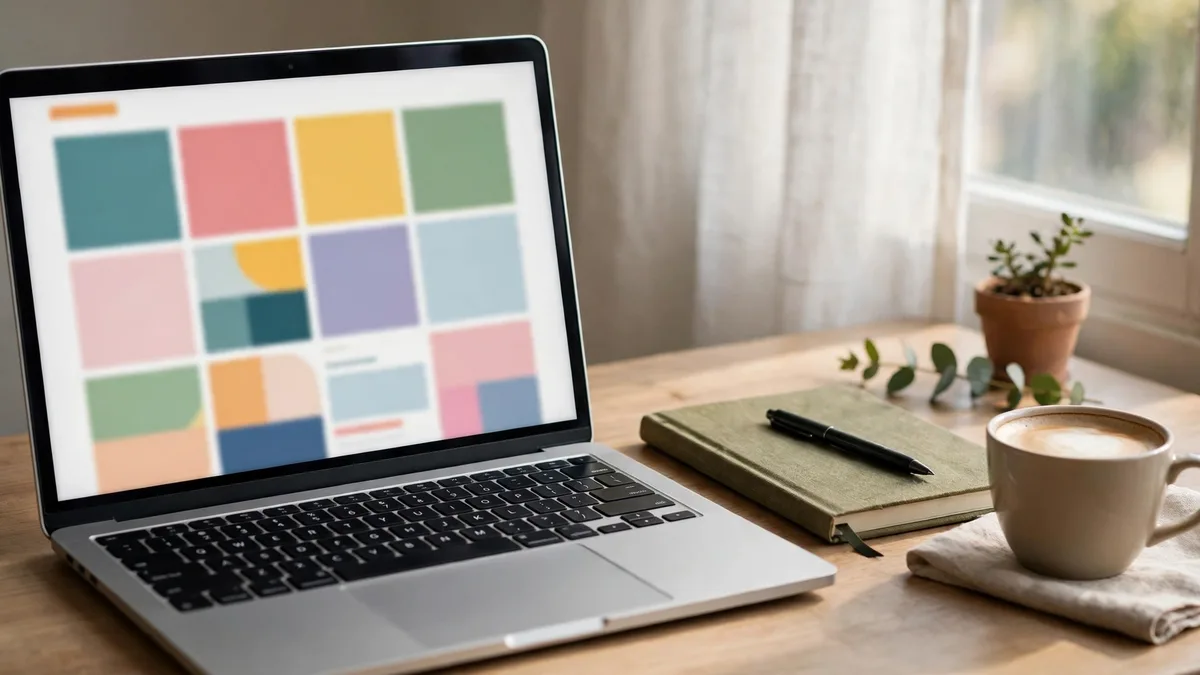

Tumblr themes are the ready-made designs that control how a Tumblr blog looks, from its colours and fonts to the way posts are laid out on the page. The central question for a new blogger is simple: how do you pick a theme that suits your blog and then make it your own? You start by choosing a layout that fits the kind of posts you make, then you adjust its colours, fonts and details until the blog feels like yours.
Tumblr itself is a blogging and social platform founded in 2007, where people post text, photographs, links, quotes, audio and video, and follow one another’s blogs. A theme is the frame around all of that: it does not change what you post, but it changes how every visitor experiences it. A good theme makes a blog easier to read and easier to recognise, and this guide explains how to find one.
Key takeaways
- A Tumblr theme is a ready-made design that controls a blog’s layout, colours, fonts and how posts appear.
- Choose a theme for the kind of posts you make most: photo blogs need grids, while writing blogs need readable text layouts.
- Free themes cover most needs, while paid themes usually add more layouts and more options for customisation.
- Preview a theme with your own posts before you commit, and check it on a phone as well as on a computer.
- Most themes can be customised without code, through colours, fonts, headers and the blog’s description.
- Keep a note of your theme’s name and settings before you change it, so you can go back if a new design does not work.
What a Tumblr theme is
A Tumblr theme is a template that decides how a blog is presented. It sets the width of the page, where the title and description sit, how posts are arranged, what the navigation looks like, and how the blog behaves on a phone. Two blogs with identical posts can look entirely different because their themes are different, and that is the point: the theme is the blog’s visual identity.
Themes come from two main sources. The first is Tumblr’s own theme garden, the built-in collection of free themes that can be applied in a few clicks. The second is the wider world of theme makers, who sell or share themes of their own, often with more unusual layouts and more options. Both kinds work the same way once installed: the theme takes your posts and presents them according to its design.
How to choose a theme
The best way to choose is to start with your posts, not with the theme gallery. A blog that is mostly photographs needs a theme that shows images large and in a tidy grid, with little text in the way. A blog that is mostly writing needs generous line spacing, a readable font and a narrow column that keeps the eye on the words. A mixed blog, with text, photos and links, needs a theme that handles all three without making the page feel crowded.
Next, consider how visitors will reach you. Most Tumblr readers browse on their phones, so a theme must be easy to read on a small screen, with text that does not need zooming and buttons that are easy to tap. Preview every theme you like on a phone before you commit, and be wary of any theme that looks beautiful on a computer and cramped on a phone.
Finally, think about maintenance. A simple theme with few moving parts is easier to live with than a complex one with animated effects and dozens of settings. If a theme needs constant adjustment to look right, it is the wrong theme. The best themes disappear into the background and let the posts do the work.
Free themes versus paid themes
Free themes cover most needs well. Tumblr’s own collection includes clean, reliable designs for photo blogs, writing blogs and mixed blogs, and they are kept working as the platform changes. For a new blog, or a blog that posts casually, a free theme is usually the right place to start, and many long-running blogs never move beyond one.
Paid themes, which are sold by independent theme makers, usually offer more: more layout choices, more options for colours and fonts, and sometimes features such as a built-in archive page or a custom way of showing certain kinds of posts. The price is a one-off payment in most cases, but the terms vary by maker, so read what is included before you buy, and check whether the theme is still being updated. A theme that has not been updated in years may break when Tumblr changes something, and a maker who has stopped answering questions will not help you fix it.

Comparing the kinds of Tumblr theme
The table below summarises the main kinds of theme you will meet, so you can narrow the choice before you start previewing.
| Kind of theme | Best for | Keep in mind |
|---|---|---|
| Grid theme | Photo and image blogs | Images must be good quality, or a grid shows every flaw |
| Single-column theme | Writing and long posts | Choose a readable font and generous line spacing |
| Minimal theme | Any blog that wants the posts to lead | Simple to maintain and fast to load |
| Sidebar theme | Blogs with links, pages and a long description | Sidebars can crowd a phone screen, so check the mobile view |
| Portfolio theme | Art, design and photography work | Needs regular updating, or the front page goes stale |
| Custom-coded theme | Bloggers who know HTML and CSS | Powerful, but you are responsible when it breaks |
How to customise a theme
Most customisation needs no code at all. Tumblr’s appearance settings let you change the blog’s title and description, upload a header image and an avatar, pick colours for the background, the text and the links, and choose a font from the options the theme offers. Those few changes are enough to make a widely used theme look like yours, and they are the place to start.
Some themes offer more options: the number of posts per page, whether to show captions, how the navigation is arranged, and whether to display a search box. Work through these slowly, changing one thing at a time and previewing after each change, so you can tell which setting caused a problem if the page suddenly looks wrong.
If you know HTML and CSS, many themes can be edited further through the theme editor, which lets you change the underlying code. This is powerful, but it carries a risk: a small mistake can break the layout, and Tumblr’s support will not fix a theme you have edited yourself. Before you touch the code, copy the whole theme into a text file and keep it safe, so you can restore it. If you do not know HTML and CSS, it is better to choose a theme that already does what you want than to edit one that does not.
Common mistakes to avoid
The most common mistake is choosing a theme for how it looks in the gallery rather than for how your posts will look in it. A theme designed for large photographs will make a text blog look empty, and a theme designed for long writing will make a photo blog look cramped. Preview with your own posts, not with the maker’s sample posts, because the samples are chosen to flatter the theme.
Another mistake is adding too much: a background image, a custom cursor, music, animated effects and a dozen sidebar widgets can slow a blog to a crawl and drive readers away. A blog that loads quickly and reads easily will keep readers longer than a blog that tries to impress them. Finally, do not forget the mobile view. A theme that is beautiful on a computer and broken on a phone will lose most of its readers, since most of them arrive on a phone.
Your Tumblr theme checklist
Use this list when you choose or change a theme.
- Decide what kind of posts you make most, and choose a layout built for them.
- Shortlist two or three themes, and preview each one with your own posts.
- Check every shortlisted theme on a phone as well as on a computer.
- Read what a paid theme includes, and check whether it is still being updated.
- Change the title, description, header image and colours first, before touching anything else.
- Change one setting at a time, and preview after each change.
- Keep a copy of your theme’s code before you edit it, if you edit the code at all.
- Remove widgets and effects that slow the page down or distract from your posts.
- Ask a friend to visit the blog and tell you what is hard to read or to find.
- Note the theme’s name and your settings, so you can go back if a change does not work.
Frequently asked questions
Are Tumblr themes free?
Many are. Tumblr’s own theme garden offers a collection of free themes that can be applied in a few clicks, and independent makers also share free themes. Paid themes exist too, usually sold by theme makers as a one-off purchase, and they generally offer more layouts and more options for customisation.
Can I change my Tumblr theme later?
Yes. You can change your theme at any time, and your posts stay exactly as they are, because the theme only controls how posts are displayed. It is still worth noting your old theme’s name and settings before you switch, in case you want to go back.
Do I need to know code to customise a Tumblr theme?
No. Most customisation, including colours, fonts, the header image, the title and the description, is done through Tumblr’s appearance settings without any code. Code is only needed if you want to change the theme’s structure itself, and that is optional.
Why does my Tumblr theme look different on my phone?
Most themes have a separate mobile layout that rearranges the page for a small screen, so the blog will look different on a phone than on a computer. That is normal, but a theme whose mobile layout is cramped or hard to read is a reason to choose a different theme.
Can I use a theme made by someone else?
Yes, that is how most Tumblr blogs are designed. Themes from Tumblr’s own collection and from independent makers are made to be used by other bloggers. Check the maker’s terms before you use a paid theme, and keep the credit line the maker asks for, where one is requested.
What should I do if a theme breaks my blog?
First, switch back to a default Tumblr theme, which will restore a working layout at once. Then check whether the problem came from a setting you changed or from code you edited, and restore your saved copy of the theme if you kept one. If a paid theme is broken, contact the maker, since they are the person who can fix it.
The bottom line
Tumblr themes work best when they are chosen for the posts, not for the gallery: pick a layout that suits what you publish, check it on a phone, customise the colours and details until it feels like yours, and keep it simple enough to maintain. A theme should frame your blog, not compete with it. For more on making things and learning how they work, see our guide to what is a neural network, our tutorial on how to sew a button, and our recipe for how to make iced matcha.