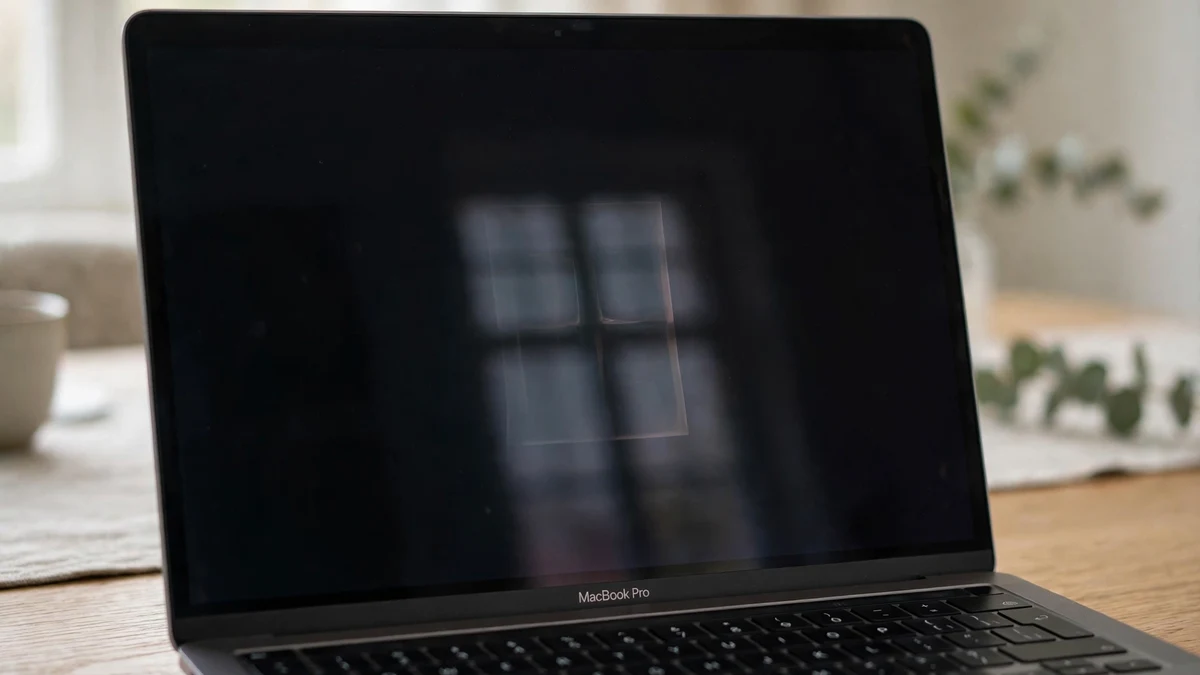

MacBook Pro screen burn marks are usually not burns at all. Most of the marks owners describe as burn-in turn out to be temporary image retention, worn anti-reflective coating, or oil and dirt transferred from the keyboard when the lid is closed. True permanent burn-in is extremely rare on the mini-LED LCD screens used in MacBook Pro models from 2021 onwards. This guide explains what each kind of mark is, how to test it, and what to do about it.
Key takeaways
- Most MacBook Pro screen burn marks are image retention, coating wear or keyboard imprints, not true burn-in.
- Marks visible on a switched-off screen sit on the glass; marks only visible when on sit inside the panel.
- A screenshot test settles it: a mark in a screenshot is software, not the display.
- Image retention usually fades with varied content, rest and lower brightness.
- Keyboard and oil marks often clean off with a lightly dampened microfibre cloth.
- Worn coating and panel damage usually need a professional repair.
What people mean by MacBook Pro screen burn marks
The phrase covers four different problems that look alike at first glance. The first is image retention, sometimes called ghosting: a faint outline of something that was on screen, such as the menu bar or a window border, that lingers after the content has changed. The second is damage to the anti-reflective coating on the glass, which can look like blotchy patches or worn areas, often in the shape of the keyboard. The third is oil and dirt transferred from the keyboard to the screen when the lid is closed, which can leave a faint grid of key shapes. The fourth is discolouration inside the panel itself, such as yellowed or darker areas that do not wipe away, which can come from heat, pressure or a backlight fault. Each has a different cause and fix, so the first job is to work out which one you have.
Why burn marks appear
Image retention happens because the liquid crystals in an LCD panel are held in one position for a long time and become slow to change state. Leave the same window or menu bar on screen for hours every day, and a faint ghost of it can remain when the picture changes. It is temporary on LCD and mini-LED screens, and it usually fades within minutes or hours once the screen shows varied content. True burn-in is different: it is permanent, physical wear. In an OLED panel, each pixel makes its own light, and the material in pixels showing the same bright content wears out faster, so those areas stay dimmer. That is why OLED screens can keep a ghost of a logo or a dock that never goes away.
Coating wear has nothing to do with pixels. The anti-reflective coating on the glass is thin, and it can be damaged by pressure, harsh cleaning chemicals, or repeated contact with the keyboard when the lid is closed. Once the coating is worn or peeling, the mark does not wipe off. Keyboard imprints are simpler: skin oil and dirt on the keys transfer to the glass when the lid presses the keyboard against the screen. Heat and pressure can also damage the panel: a MacBook left in a hot car or used on a soft surface that blocks its vents can develop discoloured patches, and a swollen battery can press against the display. If the trackpad feels raised or the keyboard feels uneven, stop using the machine and have the battery checked, since a swollen battery is a safety matter.
Which MacBook Pro models are at risk
The risk depends on the display technology. Most MacBook Pro models sold before 2021 use a standard Retina LCD panel, which cannot suffer true burn-in at all; the only ghosting they show is temporary image retention, which fades. The 14-inch and 16-inch models from 2021 onwards use a mini-LED backlit LCD panel, marketed as the Liquid Retina XDR display. Mini-LED is still an LCD panel, so permanent burn-in is extremely rare, although temporary retention is still possible. Reports in late 2026 describe a newer MacBook Pro with a tandem OLED panel, where each pixel emits its own light; on that display, uneven pixel wear is a real risk if the same bright content is shown for very long periods. Whatever the model, coating wear, keyboard imprints and pressure damage can affect any MacBook Pro.
| Model | Display type | True burn-in risk | What you usually see |
|---|---|---|---|
| MacBook Pro before 2021 | Retina LCD | None | Temporary retention, coating wear |
| MacBook Pro 14-inch and 16-inch, 2021 onwards | Mini-LED LCD, Liquid Retina XDR | Extremely rare | Temporary retention, keyboard imprints |
| Newer MacBook Pro with OLED display | Tandem OLED | Possible with long static use | Lasting ghost of static content |
| Any MacBook Pro | Any panel | Not applicable | Coating wear, pressure and heat marks |

How to test your screen
Work through these tests in order. First, turn the screen off and look at the black glass under a bright light from an angle. Marks that show on a switched-off screen sit on the glass or the coating, which points to dirt, oil or coating wear. Next, turn the screen on and open a plain white image at full screen, then switch to plain grey and plain black. If the mark stays in the same place on every colour, it is in the panel or the coating; if it fades with the content, image retention is more likely. Then take a screenshot and look at it on another device. If the mark appears in the screenshot, the problem is in the software image; if not, the display itself is the cause.
Two more tests help. Connect an external monitor: if the mark appears there too, the fault is in the graphics output rather than the MacBook display. Then gently wipe one small area with a clean microfibre cloth very lightly dampened with water. If the mark improves, it is surface residue or oil. Do not scrub, and do not use window cleaner, alcohol or household sprays, which can damage the coating. Finally, restart the Mac and, if the mark persists, boot into Safe Mode. If the mark stays the same in Safe Mode, a hardware cause is more likely.
How to fix MacBook Pro screen burn marks
The fix depends on the diagnosis. For temporary image retention, change what is on screen: display varied full-screen content or run a screen saver, and the ghost usually fades within minutes to hours. Lowering the brightness helps, and letting the screen sleep when you step away prevents it from returning. For keyboard and oil imprints, clean the screen with a soft microfibre cloth very lightly dampened with water, wiping gently in one direction. Clean the keyboard too, so the oil does not transfer again.
Coating wear is harder. A worn or peeling anti-reflective coating does not respond to cleaning, and no screen cleaner will restore it. Apple ran a repair programme for coating problems on older Retina models, so check with Apple whether your machine is covered before paying for a repair. Otherwise, the only lasting fix is a display replacement, which is expensive, so weigh the cost against the age of the machine. Pressure damage, heat damage and backlight faults also need professional repair: there is no safe home fix for a damaged panel. If the mark is a faint ghost that only shows on plain colours, many owners simply live with it. Do not press on the screen, and do not use abrasive cloths or solvents.
How to stop marks coming back
Prevention is mostly about habits. Set the screen to sleep after a few minutes of inactivity, and use a screen saver rather than leaving a static desktop on show. Hide the menu bar and the dock automatically, so the two most common ghost shapes are not permanently on screen. Keep the brightness at a comfortable level, and vary what you work on, so no window sits in the same place all day. Avoid using the machine on a bed or cushion, which blocks the vents, and never leave it in a hot car.
A checklist for MacBook Pro screen marks
- Look at the switched-off screen under a bright light: marks there sit on the glass or coating.
- Test with plain white, grey and black full-screen images and note whether the mark fades.
- Take a screenshot and view it elsewhere: a mark in it is software, not the display.
- Try an external monitor to check whether the fault is in the graphics output.
- Wipe one small area gently with a lightly dampened microfibre cloth; never scrub or use solvents.
- Restart, then try Safe Mode, and note what each test showed.
- Check with Apple whether a coating repair programme covers your model.
- A raised trackpad or keyboard can mean a swollen battery: stop using the machine.
Frequently asked questions
Can a MacBook Pro screen get burn-in?
On most models, no. MacBook Pro models with LCD and mini-LED LCD screens, including the 14-inch and 16-inch models from 2021 onwards, do not suffer permanent burn-in; they only show temporary image retention, which fades. True burn-in is a property of OLED panels, and is only a risk on newer MacBook Pro models with an OLED display.
What is the difference between burn-in and image retention?
Image retention is a temporary afterimage: liquid crystals held in one position become slow to change state, so a faint ghost remains and then fades as the panel shows varied content. Burn-in is permanent: in an OLED panel, the material in pixels showing the same bright content wears out faster, so those areas stay dimmer. Retention fades; burn-in does not.
Will a ghost image on my MacBook Pro go away?
Usually, yes. On an LCD or mini-LED screen, display varied full-screen content, run a screen saver, lower the brightness and let the screen sleep, and the ghost typically fades within minutes to hours. If it is still there after a day of varied use, it is more likely to be coating wear or panel damage.
How do I clean marks off a MacBook Pro screen?
Use a clean, soft microfibre cloth very lightly dampened with water, and wipe gently in one direction. Do not scrub, and do not use window cleaner, alcohol or household sprays, which can damage the anti-reflective coating. Clean the keyboard as well, so oil does not transfer again.
Are keyboard marks on the screen permanent?
Oil and dirt from the keyboard usually clean off. If the mark remains after gentle cleaning and shows on a switched-off screen, it may be wear to the anti-reflective coating where the keys pressed against the glass, and that does not clean off. Keeping the keyboard clean helps prevent it.
When should I get a MacBook Pro screen repaired?
Get it checked if the mark is permanent, covers a large area or is getting worse, if the screen flickers or shows lines, or if the trackpad or keyboard feels raised, which can mean a swollen battery. Check with Apple first, since a coating repair programme covered some older Retina models, and get a quote before agreeing to a display replacement.
The bottom line
MacBook Pro screen burn marks are usually image retention, coating wear or keyboard imprints, and only the first fixes itself. Test the screen with plain colours and a screenshot, clean it gently, and change the habits that leave static content on show. If the mark is permanent or the battery shows signs of swelling, get professional advice rather than trying to fix the panel yourself. For more on heat and display care, read our guide to heat damage MacBook Pro screen, our guide to the Bambu Lab A1 3D printer, and our guide to the Ambient Weather Network outdoor Wi-Fi weather camera.