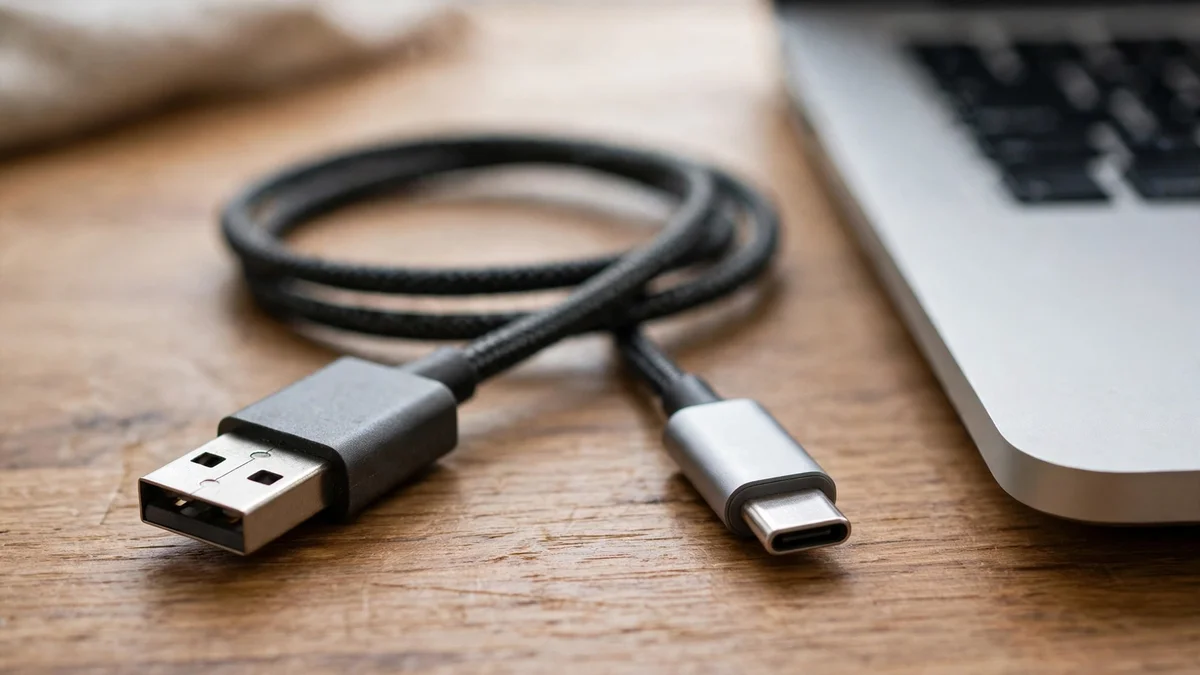

A USB-C to USB-A cable, often written as a USB C type A cable, is a cable with a small oval USB-C plug at one end and the familiar rectangular USB-A plug at the other. It connects a modern device with a USB-C port, such as a phone, tablet or pair of earbuds, to an older USB-A port on a laptop, a wall charger, a car port or a power bank.
Key takeaways
- A USB-C to USB-A cable links a USB-C device to a USB-A host port.
- USB 2.0 versions carry data at up to 480 Mbps, while USB 3.2 versions reach 5 Gbps or 10 Gbps.
- Standard cables carry up to 3 A, or 60 W, and 5 A cables need an electronic marker chip.
- These cables cannot carry video, USB4 or Thunderbolt, because those need a USB-C port at both ends.
- The USB-A end is always the host, so the cable only works in one direction.
- For charging a phone, a USB 2.0 cable is usually enough; for an external drive, buy a 10 Gbps USB 3.2 cable.
What a USB-C to USB-A cable is
USB-C and USB-A are connector shapes, not speeds, and that distinction is the source of most of the confusion about these cables. USB-A is the flat rectangular plug that has been on computers and chargers since the late 1990s, the one that only fits one way up. USB-C is the small oval plug introduced in 2014, which fits either way up and is now the standard port on almost every new phone, tablet and laptop. A USB-C to USB-A cable simply joins the two shapes.
The USB-C connector was designed to replace a whole family of older plugs, including USB-A, USB-B, Mini-USB and Micro-USB, with a single reversible shape. The cable in question is a halfway house on that road: one end is the new standard and the other is the old one. It is still sold with millions of phones, earbuds, keyboards and controllers, because the chargers and computers people already own mostly have USB-A ports, even though the devices themselves have moved to USB-C.
The two ends explained
The USB-A end is the host end, and it is always the host end. In a USB-C to USB-A cable, the USB-A plug connects to the computer, charger or power bank that supplies power and controls the connection, while the USB-C plug connects to the device being charged or read from. The cable is directional by design: it cannot be used the other way round.
The USB-C end is reversible, so it plugs in either way up, and it is much smaller and more durable than the older Micro-USB plug it replaced. USB-C receptacles are rated for around 10,000 insertions, while USB-A receptacles are typically rated for 1,500 to 5,000, which is one reason the C end tends to outlast the A end in daily use.
Speeds: USB 2.0, USB 3.2 and the naming mess
The speed of a USB-C to USB-A cable depends on the USB generation inside it, not on the shape of the plugs. A USB 2.0 cable carries data at up to 480 Mbps, fast enough for charging, syncing a phone and moving small files, but slow for anything large. A USB 3.2 Gen 1 cable, often still labelled USB 3.0, reaches 5 Gbps, about ten times faster. A USB 3.2 Gen 2 cable reaches 10 Gbps, the right choice for an external solid-state drive or a fast card reader.
The naming is confusing because the USB Implementers Forum has renamed the same speeds several times. USB 3.0 became USB 3.1 Gen 1 and then USB 3.2 Gen 1, all at 5 Gbps, while USB 3.1 Gen 2 became USB 3.2 Gen 2 at 10 Gbps. The practical rule is to ignore the generation name and look for the number: 480 Mbps, 5 Gbps or 10 Gbps, printed on the packaging or the listing. A cable that does not state a speed is almost certainly USB 2.0.
Speed is also limited by the slowest link in the chain. A 10 Gbps cable plugged into a USB 2.0 port runs at 480 Mbps, and a USB 2.0 cable plugged into a 10 Gbps port also runs at 480 Mbps. The port, the cable and the device all have to support the faster speed before you will see it.
Charging and power
For charging, the number that matters is the current the cable can carry. A standard USB-C to USB-A cable is rated for 3 A, which at 20 V is 60 W, and at the usual 5 V of a USB-A port is 15 W. A 5 A cable, rated for 100 W at 20 V, needs a small electronic marker chip inside the plug. Most USB-A ports and chargers top out at 5 V and 2.4 A, or about 12 W, so a 100 W cable will not make a 12 W charger any faster.
Fast charging over USB-A works through standards such as Qualcomm Quick Charge, which raises the voltage to 9 V or 12 V, rather than through USB Power Delivery, which is a USB-C to USB-C feature. A phone that supports Quick Charge charges noticeably faster from a Quick Charge USB-A charger than from a plain 5 V port, but still more slowly than from a modern USB-C charger.
Cable length matters for both speed and charging. Passive USB 2.0 cables are reliable to about two metres, and passive USB 3 cables to about one to three metres, depending on the speed. Longer runs lose signal quality and drop voltage.
What a USB-C to USB-A cable cannot do
There are several jobs this cable cannot do at all. It cannot carry video, because DisplayPort Alt Mode, the system that sends video over USB-C, needs a USB-C port at both ends, and a USB-A port has no video lanes. It cannot carry Thunderbolt or USB4, for the same reason: both are USB-C only. It cannot fast-charge a 100 W laptop from a USB-A charger, because no USB-A port supplies that much power.
The table below sets out the main cable types side by side, so the limits are easy to compare.
| Cable type | Data speed | Power | Video |
|---|---|---|---|
| USB 2.0 C to A | 480 Mbps | Up to 60 W | No |
| USB 3.2 Gen 1 C to A | 5 Gbps | Up to 60 W | No |
| USB 3.2 Gen 2 C to A | 10 Gbps | Up to 100 W with marker chip | No |
| USB-C to USB-C | Up to 40 Gbps | Up to 240 W | Yes |

How to choose the right cable
Start with the job, not the cable. If you are charging a phone, tablet or earbuds from a wall charger, a car port or a power bank, buy a short USB 2.0 cable rated at 3 A, preferably with USB-IF certification. If you are connecting a USB-C external drive or card reader to an older laptop with only USB-A ports, buy a USB 3.2 Gen 2 cable rated at 10 Gbps, and keep it to one metre or less.
Check the details before you buy. Look for the speed in Gbps on the packaging, check whether a 5 A rating is backed by an electronic marker chip rather than just claimed, and prefer thicker power conductors and a braided or tough plastic jacket with reinforced strain relief at both plugs. Thin conductors and weak joints overheat, drop voltage and fail at the plug after a few months. A frayed or swollen cable should be replaced, not taped up, and our guides to heat damage MacBook Pro screen and MacBook Pro screen burn marks show what heat can do to a device when something in the chain goes wrong. And if you enjoy a different kind of cable entirely, cable crunches covers the exercise, not the connector.
Checklist: buying a USB-C to USB-A cable
Run through this list before you buy, and you will not pay for speed you cannot use or power you cannot draw.
- For charging only, buy a USB 2.0 cable rated at 3 A and keep it to two metres or less.
- For an external drive or card reader, buy a USB 3.2 Gen 2 cable rated at 10 Gbps.
- Check the speed in Gbps on the packaging, not the generation name.
- For 5 A or 100 W, check that the cable has an electronic marker chip.
- Keep 10 Gbps runs to one metre or less; longer runs need an active cable.
- Prefer a braided or tough jacket, and reinforced strain relief at both plugs.
- Do not buy a C to A cable for video, Thunderbolt or USB4: those need C to C.
Can a USB-C to USB-A cable fast-charge my phone?
It can, up to the limits of the charger. A 3 A cable with a Quick Charge USB-A charger can deliver roughly 15 to 18 W, a clear improvement over a plain 5 V port. Most USB-A ports cap at about 12 W, so expect slow charging from a computer port, and the fastest charging needs a USB-C charger and a C to C cable.
What is the difference between USB 2.0 and USB 3.2 C to A cables?
USB 2.0 cables cap at 480 Mbps and usually 3 A, or 60 W, while USB 3.2 Gen 2 cables support 10 Gbps and up to 100 W with an electronic marker chip. For charging a phone the difference does not matter; for moving files to an external drive it matters a great deal.
Can I use a USB-C to USB-A cable for video output?
No. USB-A ports do not carry DisplayPort Alt Mode, so a C to A cable cannot drive a monitor, a television or a projector. Video over USB-C needs a USB-C port at both ends. To connect a USB-C laptop to a display, use a C to C cable, a dedicated adapter or a dock.
Which way round does a USB-C to USB-A cable go?
The USB-A end always goes into the host: the computer, charger, car port or power bank. The USB-C end always goes into the device being charged or read from, such as a phone or tablet. The cable is directional and cannot be used the other way round.
How long can a USB-C to USB-A cable be?
For charging, two to three metres is usually fine with a USB 2.0 cable. For data, passive USB 3.2 cables are reliable to about one metre at 10 Gbps and up to three metres at 5 Gbps. Beyond those lengths you need an active cable or a powered hub.
Is USB-C to USB-A the same as USB-A to USB-C?
Yes, the two phrases describe the same cable, just named from opposite ends. The important details are the same either way: the data speed in Gbps, the current rating in amps, and whether the cable is USB 2.0 or USB 3.2 inside.
The bottom line
A USB-C to USB-A cable is the bridge between the old world and the new one: a rectangular plug from the 1990s at one end, and a small reversible oval at the other. For charging a phone from an old charger, a cheap USB 2.0 cable rated at 3 A is all you need. For moving files to an external drive, spend more on a 10 Gbps USB 3.2 Gen 2 cable and keep it short. Remember what it cannot do: no video, no Thunderbolt, no USB4, and no fast laptop charging from a USB-A port. Buy the cable for the job you have, and check the speed in Gbps rather than the generation name.